Mailchimp email, set up in the right order.
Start with simple audience sync. Use the optional manual flow path only if you want Mailchimp to send the availability emails too.
Production connection access: contact us to confirm availability for your installation. The email connector has a confirmed Development Restock inbox test; this does not verify every merchant account or Product Drop delivery. Mailchimp SMS is offline.
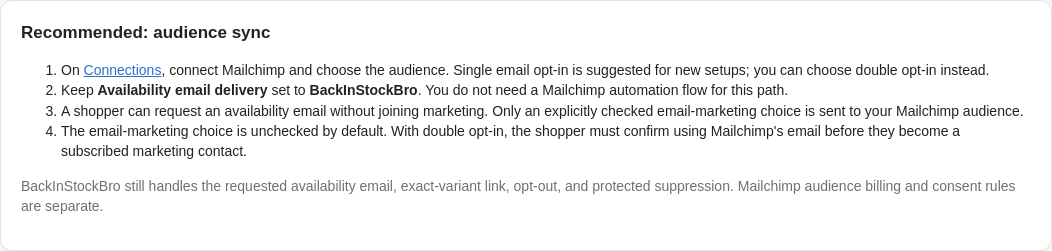
Connect your audience. Keep alerts simple.
- In Shopify, open BackInStockBro → Connections → Mailchimp. Authorize the intended Mailchimp account, then confirm that account in BackInStockBro.
- Choose one marketing audience and single or double email opt-in. Keep Availability email delivery → BackInStockBro and choose Save audience setup.
- The shopper's marketing checkbox is optional and unchecked by default. A request for a restock alert is not marketing consent. With double opt-in, the shopper must confirm Mailchimp's email before they are subscribed.
No Mailchimp flow is needed for this path. BackInStockBro sends the requested exact-variant alert whether or not the shopper joins marketing. Connecting both Klaviyo and Mailchimp does not broadcast a signup to both: the request uses one eligible saved email provider. SMS has its own independent route.
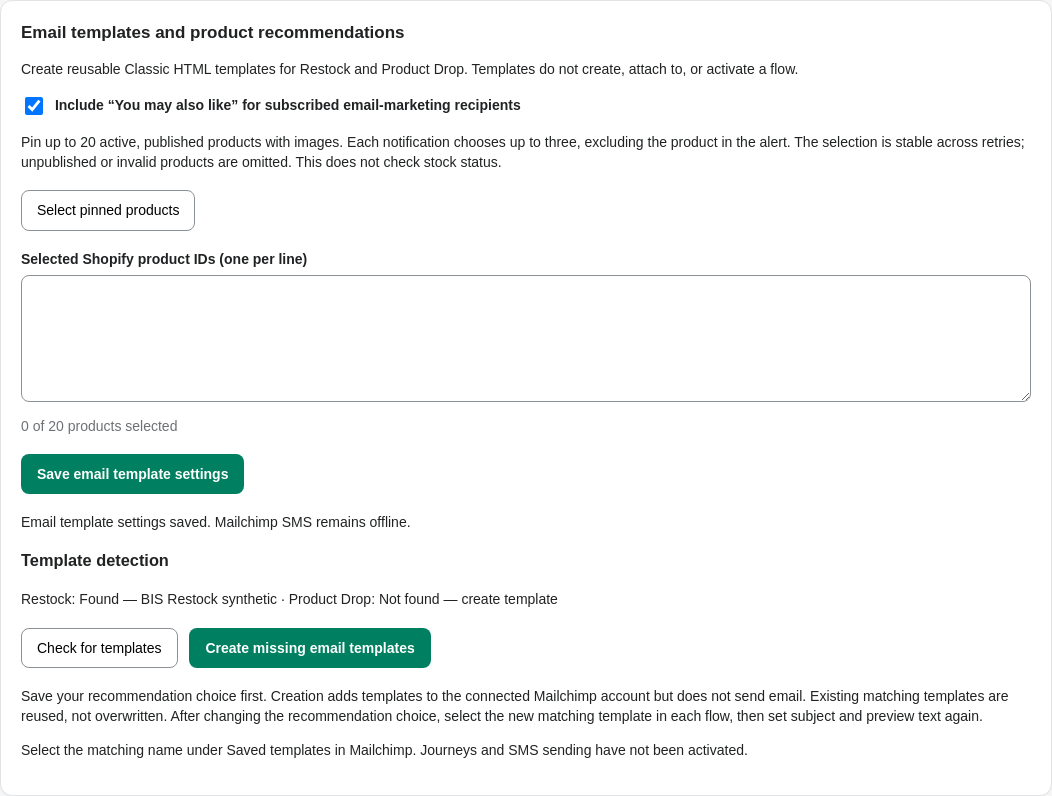
Create templates before building the flows.
This and the remaining steps are optional. In Mailchimp setup, choose whether to include “You may also like.” You can pin up to 20 active, published Shopify products with images; each email includes at most three, excluding the alert's product. Product eligibility matters even if you select fewer than 20. Pinned recommendations do not check stock.
- Choose Save email template settings.
- Choose Check for templates, then Create missing email templates if needed. Creation adds saved HTML templates; it does not send email or create flows.
- Note the detected BIS Restock… and BIS Product Drop… names. Use those exact templates below. Changing recommendation settings can produce a new matching template name; old templates are not overwritten.
Build two separate email flows in Mailchimp.
Your Mailchimp plan must support the Event API trigger and custom HTML templates. If Event API is unavailable, check your plan and whether Mailchimp's builder requires an API key in your account. BackInStockBro uses OAuth: do not paste an API key into our app or send it to support.
- Choose Build from scratch for the same audience selected in BackInStockBro.
- Choose API & Integrations → Event API. Create a new Event name and save the trigger. For Back in Stock, enter
bis_restock_available. For Product Drop, enterbis_product_drop_available. Match exactly; do not use Mailchimp's separate “Product back in stock” trigger. - Drag Send email onto the flow and open the step.
- Choose Select a Template → Saved templates. Apply the matching detected Restock or Product Drop template.
- If prompted, choose Yes, continue to Legacy. These custom HTML templates use Mailchimp's Legacy builder. Then choose Save and Return to Journey.
Merge tags and missing images may appear unresolved in the editor because it has no real event payload. Do not replace the dynamic tags with a single product's static details. Check their rendering in a received event-triggered email.
Set subject and preview after selecting the template.
Template selection can clear both fields. Reopen Send email, choose Set Subject & Preview Text, paste your text, check To & From, and choose Save. A saved email template carries content, not these flow settings.
Back in Stock
Subject
It's back! Your requested item is available
Preview text
The option you were waiting for is back in stock. Shop it now!
Product Drop
Subject
Your requested new arrival is ready
Preview text
The new arrival you asked about is now available. Shop your selected option.
Plain-text examples avoid dependence on event merge tags. The embedded setup page includes copy buttons for all four fields.
Turn on, save routing, then test a new signup.
- In Mailchimp, choose Close → Continue. Resolve review issues such as a missing subject, then choose Turn flow on.
- In BackInStockBro Connections, select Mailchimp Journeys (advanced) and confirm only the matching live flow. Confirmations are merchant attestations, not automatic Mailchimp verification. Save before submitting a test signup.
- Create a new signup for an unavailable exact variant with email marketing selected, then make the variant purchasable. Existing waiting requests keep their original route; changing settings does not reroute them.
- Check actual inbox receipt, including spam. Verify the product, variant, image, shop link, and unsubscribe links. Test Restock and Product Drop independently. Provider acceptance is not inbox delivery.
Mailchimp applies current subscription status and its sending rules. Pending, withdrawn, cleaned, suppressed, or unavailable consent must not be bypassed through another sender. Keep native BackInStockBro delivery for the simple audience-sync path. A missing or unattested flow stays on the native route for its intent.
Mailchimp SMS is offline.
We do not collect Mailchimp SMS consent, sync phone numbers, or send availability texts through this connector. Marketing SMS approval and credits do not change that.
The tested SMS editor rejected email Event merge tags. Shared audience fields are not a safe substitute for per-message product data: overlapping alerts can overwrite one another.
A custom Transactional SMS API pilot requires separate provider-confirmed access, credentials, an approved sender and use case, consent and suppression checks, and phone-delivery testing. It is not enabled or included. Contact us about pilot access, or configure supported Klaviyo SMS independently.